Table of Contents
LGSVL simulator: running the LGSVL simulator alongside Autoware.Auto
LGSVL is a Unity-based multi-robot simulator for autonomous vehicle developers. It provides a simulated world to
- create sensor inputs to Autoware.Auto,
- allow the user to manually steer the ego vehicle similar to a computer game,
- place other moving traffic participants in a scene.
For more information about the simulator, see https://www.lgsvlsimulator.com/docs/.
Requirements
The following guide assumes that the LGSVL simulator will be run from inside an ADE container, although it is not strictly required.
- ADE 4.2.0 or later. Follow the ADE installation instructions to install it
- NVidia graphics card
- If using Docker engine version 19.03 or later, install Native GPU Support.
- If using Docker engine with a version less than 19.03, either upgrade Docker or install nvidia-docker2
- Cyclone DDS is the DDS vendor; see Choosing a DDS Vendor
Using the simulator
Using the simulator involves the following steps:
- Launch it
- Choose or create a simulation
- Bridge the simulator with Autoware.Auto
- Start the simulation
This section outlines these steps.
Launching the simulator
Install ADE as described in the installation section:
Start ADE with the LGSVL volume:
Pick a different .aderc-*-lgsvl file to manually choose a ROS version.
To start the LGSVL simulator, in the same terminal window:
Now start your favorite browser on the host system (outside of ADE!) and go to http://127.0.0.1:8080 where simulations can be configured.
- Note
- When running LGSVL Simulator in a Docker container, the "Open Browser..." button in the simulator window does not work.
- When running LGSVL Simulator for the first time, you may be asked to log into https://account.lgsvlsimulator.com/. If you have an account, log in. If you do not have an account, create one, then log in.
Troubleshooting
In case the simulator window opens up with a black screen and the application immediately terminates, remove conflicting graphics drivers from ADE with
and launch the simulator again.
Creating a simulation
Creating a simulation configuration takes only a few clicks in the browser. The following steps assume that the launch was successful and illustrate the configuration process with the setup for the Autonomous Valet Parking Demonstration.
Choosing a map
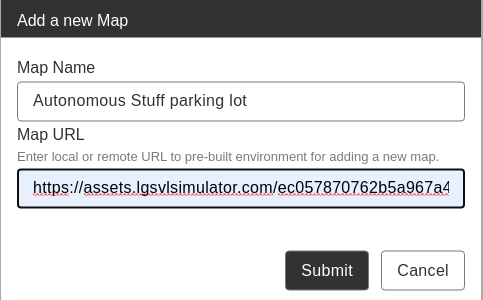
The goal is to create a map configuration for the AutonomouStuff parking lot. If that map is already available on the first launch of the simulation, nothings needs to be done.
Else follow the LGSVL instructions, click the Add new button and enter a name (e.g. AutonomouStuff parking lot) and the link to the asset bundle from this site containing the map data:
Once submitted, this will download the map automatically.
Configuring a vehicle
The goal is to create a vehicle configuration for the AutonomouStuff parking lot.
Follow the LGSVL instructions, to configure the Lexus model: click the vehicles tab, then Add new and enter Lexus2016RXHybrid as name and
as Vehicle URL.

Once submitted, click on the wrench icon for the Lexus vehicle and
- Change the bridge type to
Ros2NativeBridge - In the
Sensorsbox, copy and paste the content oflgsvl-sensors.jsonlocated at the root of the Autoware.Auto repository to tell LGSVL about sensor positions and where to communicate information to the Autoware.Auto stack.

The Ros2NativeBridge is a special bridge type which does not require a websocket-based bridge. When a simulation is started, the topics should be published in ROS 2 automatically.
The above steps are a modified version of the LGSVL documentation
Choosing/creating a simulation
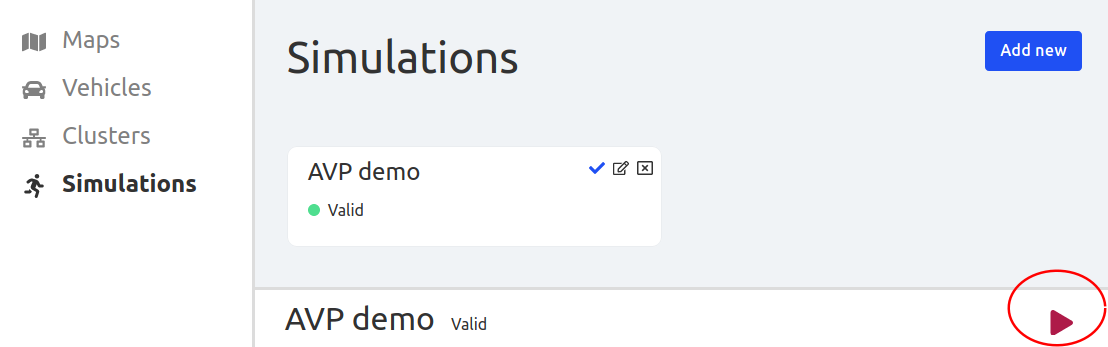
Choose Simulations on the left to see the simulations screen. The LGSVL simulator lets you store and reuse multiple simulation configurations. To use an existing simulation, select the desired simulation and press the play button in the bottom right corner of the screen. The simulator should now start in the LGSVL window.
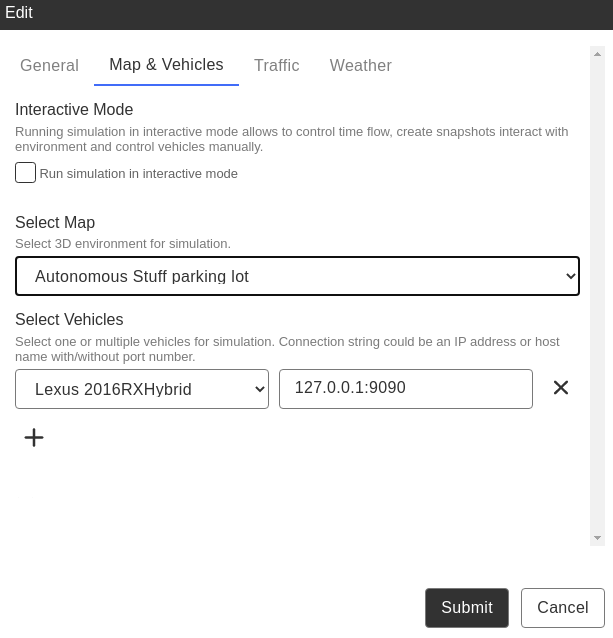
To create a new simulation, follow the below steps:
- Switch to the Simulations tab and click the
Add newbutton. - Enter a name and switch to the
Map & Vehiclestab. - Select the
Lexus2016RXHybridfrom the drop-down menu. - Enter
127.0.0.1:9090in theRos2NativeBridge connctionbox. - No changes to the
TrafficorWeathertab are needed but one can play around here. - Click submit.

Starting the simulation
Once the simulation has been created, select it by clicking on its white box first, then run it by clicking the play button.
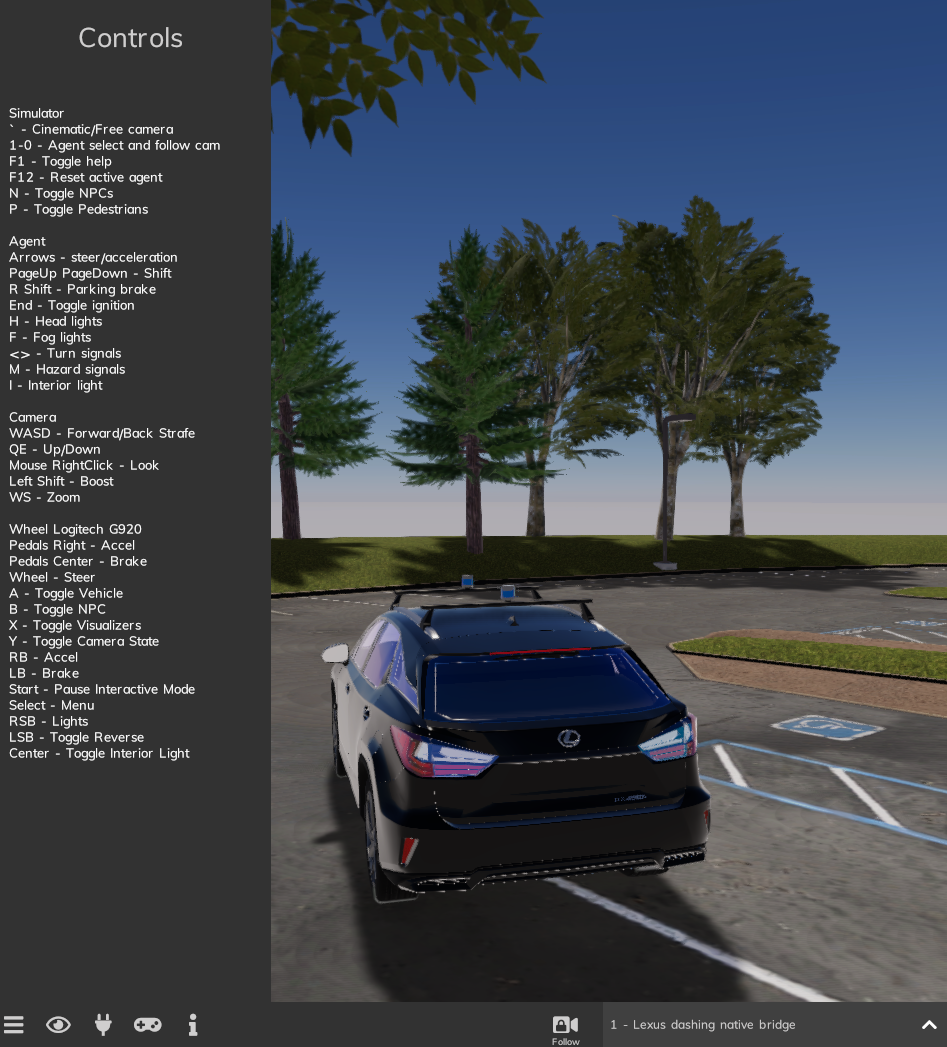
The Lexus should appear in a 3D rendering in the LGSVL Simulator window (not in the browser).
The next step is to control the Lexus and to drive around. Press F1 to see a list of shortcuts and press the cookie button in bottom left corner for more UI controls.
The essential commands are to use the arrow keys to steer and accelerate, and the Page Up and Page Down keys to switch between forward and reverse driving.
Congratulations if everything is working up to this point. The setup of LGSVL is completed.
Bridging with Autoware.Auto
LGSVL uses conventions which are not directly aligned with ROS 2 conventions. The full list of behaviors the lgsvl_interface implements is:
- Converts control inputs with CCW positive rotations to the CCW negative inputs the LGSVL simulator expects
- Provides a mapping from
VehicleControlCommandto theRawControlCommandLGSVL expects via parametrizable 1D lookup tables
To run the lgsvl_interface manually, enter the following in a new terminal window:
Launch scripts are also provided for convenience. For example for a joystick control demo, run the following in a new terminal window:
For an example of using VehicleControlCommand with LGSVL, run the following demo in a new terminal window: